
Logo Mockup Guide: Create Realistic Brand Previews Fast
A logo mockup turns a flat brand mark into a believable preview on packaging, apparel, signs, stationery, products, or real-world scenes. Instead of asking people to imagine how a logo might look in use, you can show its scale, placement, material, lighting, and surroundings in one image.
This guide explains how to create a logo mockup online with an existing logo, brand symbol, or supporting graphic. You will learn when to use a template, when to upload a reference image, how to write a useful prompt, and how to judge whether an AI logo mockup is ready for a presentation.
The goal is not to replace final production files. A logo mockup is a visual decision tool: it can make a pitch clearer, expose design problems earlier, and help a team choose which brand applications deserve further development.
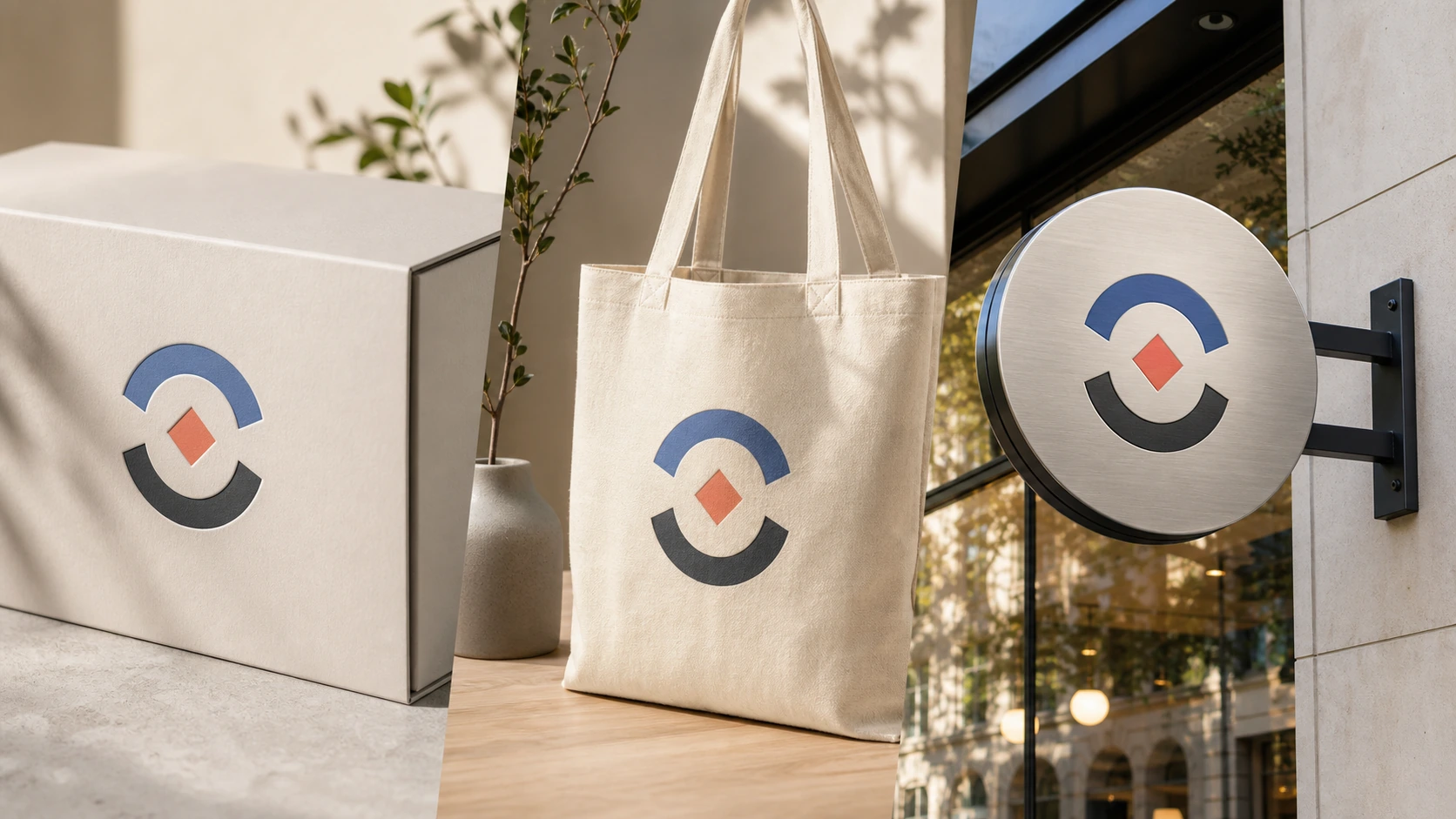
Table of Contents
- What Is a Logo Mockup?
- Why a Logo Mockup Beats a Flat Logo Presentation
- How to Create a Logo Mockup Online With AI
- Choose Templates, References, and Prompts
- 12 Logo Mockup Ideas for Brand Presentation
- Free Logo Mockup Options: What to Check
- Logo Mockup vs Photoshop: Speed or Manual Control?
- How to Get Mockups for a Company Logo
- Logo Mockup Quality Checklist
- Turn Your Logo Into a Brand-Ready Mockup
What Is a Logo Mockup?
A logo mockup is a visual simulation of a logo applied to a surface or scene. It might show a mark printed on a coffee cup, embossed into a box, stitched on a cap, mounted on a storefront, or displayed on a business card. The object may not exist yet; the image helps viewers understand the intended result.
Unlike a logo file on a plain background, a logo mockup introduces context. It reveals whether thin lines survive on textured material, whether a wide wordmark fits a narrow label, and whether a color palette still works under realistic lighting. That context makes logo mockups useful during design reviews, sales pitches, launch planning, and early packaging discussions.
Mockup, prototype, and production artwork
These terms solve different problems. A logo mockup communicates appearance. A prototype tests a physical or digital experience. Production artwork contains the exact dimensions, colors, bleed, and technical specifications needed to manufacture or print something. An attractive mockup should never be treated as proof that a design is ready for production.
What can you place in a mockup?
The source does not have to be a complete wordmark. You can begin with a logo symbol, monogram, badge, brand pattern, label graphic, illustration, or other flat brand element. A clear source also helps a logo mockup generator preserve the identity more consistently.
Why a Logo Mockup Beats a Flat Logo Presentation
A flat logo sheet answers “What does the mark look like?” A logo mockup answers “How might the brand feel when people encounter it?” That difference helps non-designers respond to an application rather than debate an abstract symbol in isolation.
It makes scale easier to understand
A mark that feels balanced on a large presentation slide may become weak on a bottle cap or overwhelming on a tote bag. A logo mockup shows the relationship between the identity and the object, allowing teams to discuss size and placement before requesting a physical sample.
It exposes practical design weaknesses
Realistic scenes reveal problems that a white canvas hides. Fine lettering may disappear on fabric, a delicate outline may lose contrast on glass, or a long name may not fit a compact product. Reviewing several logo mockups can identify where an icon-only version, one-color variation, or simpler lockup is needed.
It creates a stronger presentation story
A thoughtful logo mockup connects brand strategy to recognizable moments: opening a package, walking past a sign, wearing a uniform, or holding a product. Each logo mockup should have a clear presentation job. The mockup supports the proposal, while the original logo remains the source of truth.
How to Create a Logo Mockup Online With AI
The fastest workflow begins with a finished, readable logo and one clear application goal. You do not need to construct layers, masks, shadows, and perspective by hand for every early concept. An online mockup generator can build visual directions from your asset, a template or reference, and a short prompt.
1. Prepare the logo or brand asset
Use a clean PNG, JPG, JPEG, or WebP file. Remove unrelated background content, keep the logo centered, and make sure small text is readable. A simple source gives the logo mockup generator a clearer brand reference. If you do not have a mark yet, create one with AI Logo Creator Online before moving into product and presentation scenes.
2. Upload the logo
Open the Free AI Mockup Generator and upload the brand asset you want to apply. The logo is the required source for this workflow. Templates, reference images, and written direction can guide the scene, but they should not replace the identity shown in the upload.
3. Select a template or upload a reference
Choose a mockup template when you want a quick starting point such as apparel, packaging, signage, or merchandise. Upload a custom product or scene reference when you need a particular object, material, composition, lighting direction, or environment. Either route can make the logo mockup more specific.
4. Edit the prompt
Describe the object, placement, material, camera angle, background, and lighting that matter. Keep the instruction direct: “Apply the uploaded mark as a subtle one-color emboss on a matte charcoal presentation box, photographed at a three-quarter angle in soft studio light.” A precise prompt helps the logo mockup follow a usable creative direction.
5. Generate and review the result
Choose the available size and image quantity, generate, and inspect each image in History. Check spelling, geometry, color, scale, perspective, material interaction, and unwanted additions. If a logo mockup changes the mark or places it unnaturally, edit the prompt, change the reference, or try a different template before downloading the preferred result.
Choose Templates, References, and Prompts
Templates, custom references, and prompts are complementary inputs. The best combination depends on how specific your logo mockup needs to be. Starting with everything at once can introduce conflicting direction, so add only the information that improves the scene.
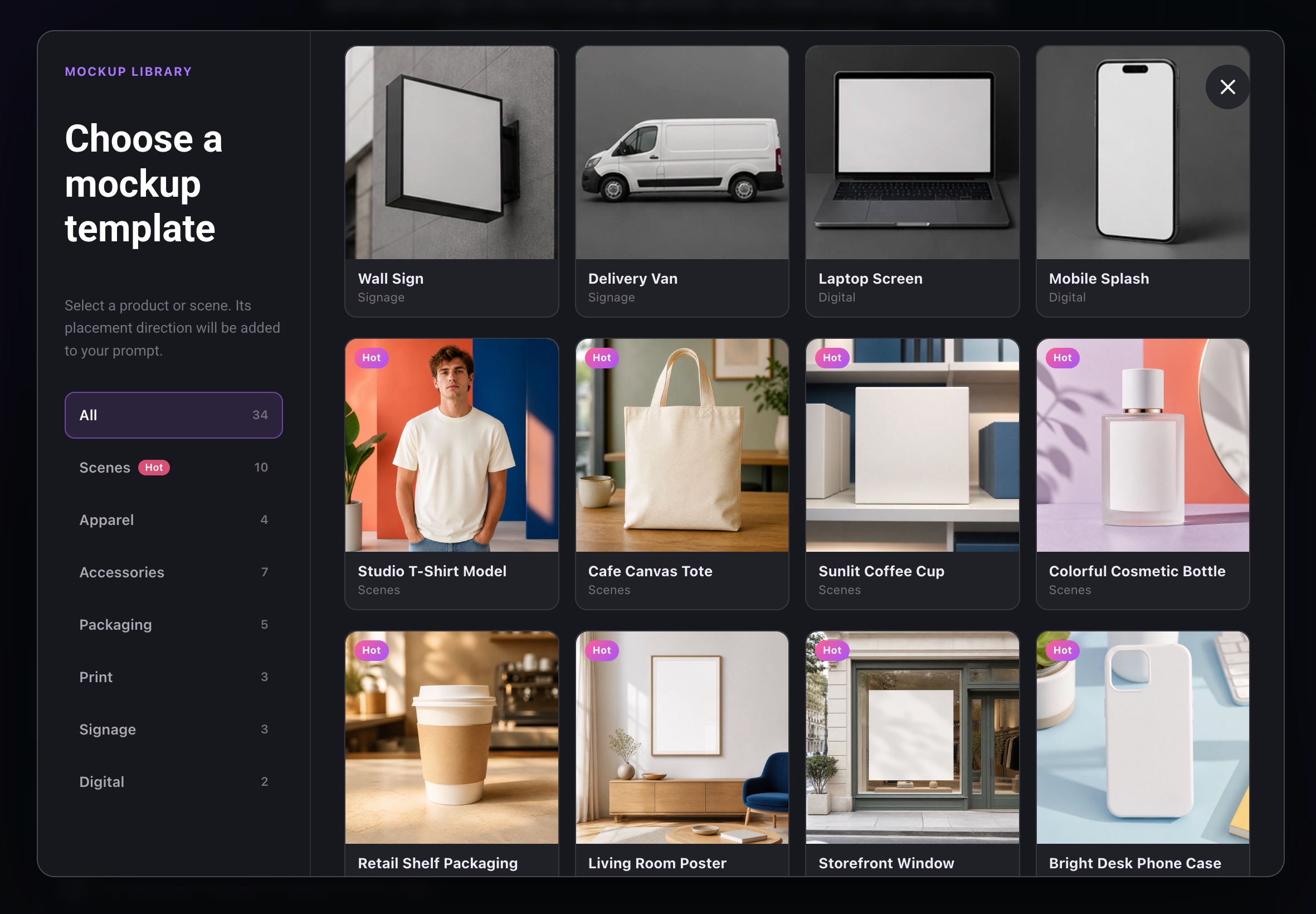
Use a template for speed
A template is useful when the product category matters more than an exact object. It can establish a cup, box, shirt, sign, tote, bottle, or stationery scene quickly. After selecting one, adjust the prompt so the logo mockup reflects your own material, atmosphere, and logo placement rather than accepting a generic result.
Use a custom reference for specificity
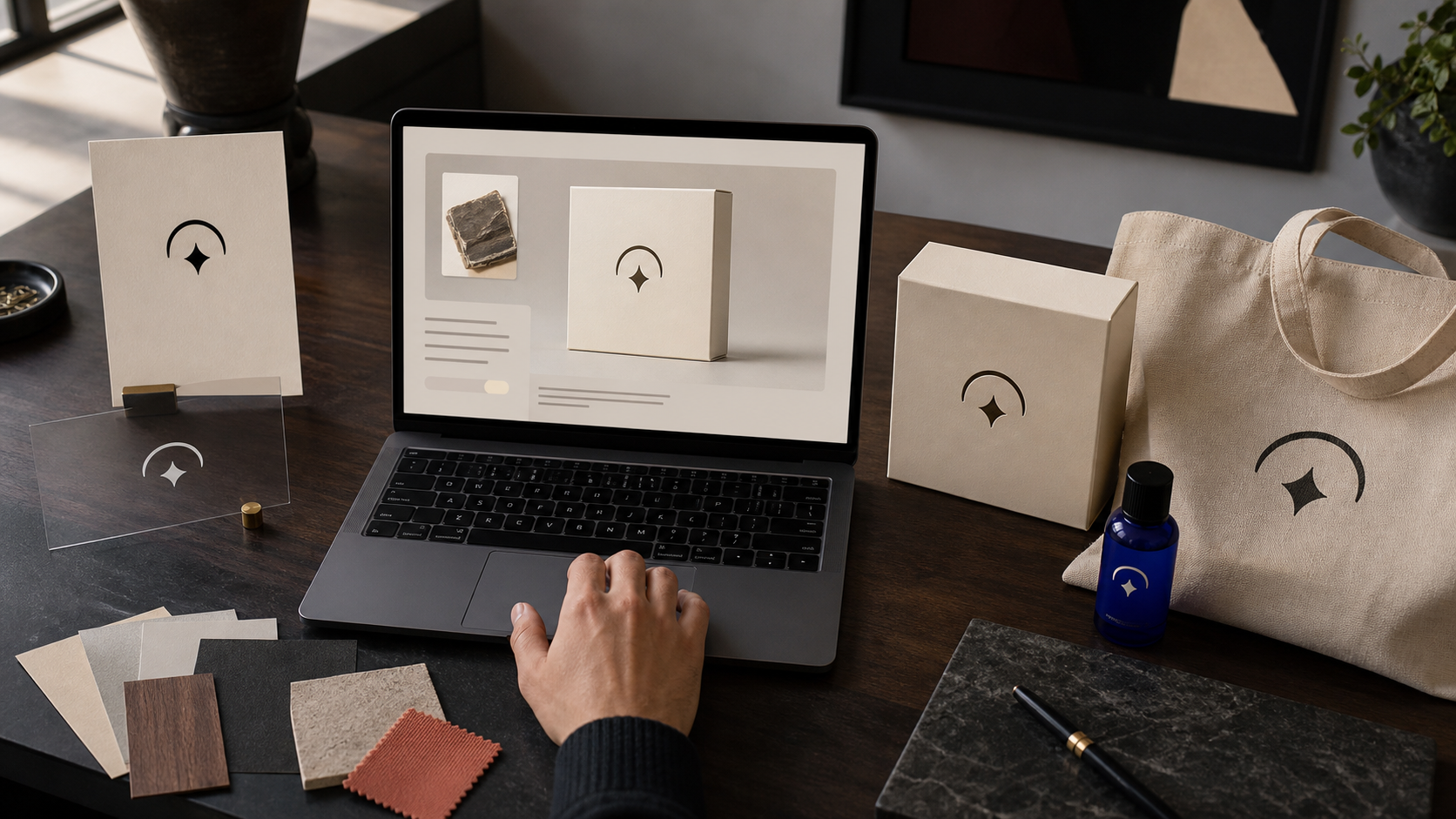
Upload a reference when you already know the product shape, setting, material, lighting, or composition. The reference may be your own blank package photo, a product prototype, or an approved visual direction. It should guide the scene while the uploaded logo remains the primary brand source. Avoid references that contain third-party branding you do not want reproduced.
Use a prompt to control the decision
A good prompt describes what can be judged in the final logo mockup. Include the surface, application method, placement, relative size, viewpoint, lighting, and mood. “Centered black print on a cream cotton tote, natural folds, eye-level lifestyle photo, warm daylight” is more useful than “make it look premium.”
Combine inputs without over-directing
Use a template plus a short prompt for fast exploration. Add a custom reference when the shape or environment must be more specific. If the output becomes confused, remove one source and simplify the instruction. A controlled logo mockup is easier to evaluate than a scene trying to satisfy several competing styles.
12 Logo Mockup Ideas for Brand Presentation
Choose scenes that support the brand’s real customer journey. The matrix below keeps 12 logo mockup ideas compact while covering products, physical spaces, and presentation assets.
| Product and packaging | Apparel and spaces | Presentation and campaign |
|---|---|---|
| 1. Product box: printed or embossed mark on a retail package | 5. T-shirt: screen-printed identity with natural fabric folds | 9. Business card: front-and-back stationery presentation |
| 2. Bottle label: logo scaled for a curved label surface | 6. Cap: compact symbol embroidered on the front panel | 10. Brand board: logo, palette, type, and one application scene |
| 3. Coffee cup: one-color mark on paper or ceramic | 7. Storefront sign: readable identity in an exterior context | 11. Event poster: supporting brand graphic within a campaign layout |
| 4. Shopping bag: centered mark with handles and material texture | 8. Delivery vehicle: horizontal logo placement viewed at distance | 12. Social launch: branded object composed for a digital announcement |
One scene rarely proves that a system works everywhere. Create a small set of logo mockups that test different conditions: large and small, light and dark, flat and textured, close-up and distant. A brand mockup generator can help explore that range without filling the deck with repetitive variations.
For a free mockup for logo presentation, prioritize two or three relevant applications instead of producing every available template. A café may need a cup, sign, and takeaway bag; a software company may need an event display, notebook, and social launch image. Relevance makes each logo mockup more persuasive.
Free Logo Mockup Options: What to Check
Searches such as free mockup logo, logo mockup free, logo mockup free download, and free mockup for logo presentation often lead to very different resources. Some offer editable PSD files, some provide flat scene images, and others use credits to generate AI results. Check the actual workflow and current usage terms before investing time in a direction.
Confirm what “free” includes
A free logo mockup may mean a downloadable sample, a limited template, trial credits, or a preview that requires payment to export. A free mockup generator should not automatically be interpreted as unlimited generation. Review the current credit requirement, download availability, and account conditions before beginning important work.
Check whether the source is editable
Traditional free mockup files may require compatible software and knowledge of smart objects or layers. An online logo mockup generator can be lighter because you upload an asset and guide the result without manually building the scene. The tradeoff is less direct control over every pixel, shadow, and surface boundary.
Review license and ownership separately
Free access does not automatically grant unrestricted commercial rights. Check the terms associated with the tool, template, reference image, fonts, and any third-party assets you use. A logo mockup can support a presentation, but legal clearance and production approval remain separate responsibilities.
Logo Mockup vs Photoshop: Speed or Manual Control?
Both workflows can produce useful visuals, but they serve different stages. An AI logo mockup tool prioritizes fast exploration, while Photoshop supports detailed manual construction and correction. The right choice depends on whether you need a concept quickly or exact production-oriented control.
| Decision | Online AI workflow | Photoshop workflow |
|---|---|---|
| Setup | Upload a logo, then choose a template, reference, or prompt | Open a prepared file or construct the scene and layers |
| Control | Guide the overall result through visual and written inputs | Adjust masks, smart objects, blend modes, perspective, and effects directly |
| Speed | Useful for generating early visual directions quickly | More time-intensive when every treatment is built manually |
| Realism | Can synthesize texture, light, perspective, occlusion, and shadows | Depends on source photography, layer setup, and editing skill |
| Revisions | Change the prompt, template, or reference and regenerate | Edit individual layers and settings with precise control |
| Best use | Ideation, presentation concepts, and application exploration | Exact art direction, retouching, and controlled final delivery |
AI can make a logo mockup feel more integrated than simply pasting a flat logo over a photo because the scene can account for material, perspective, light, and occlusion together. Results still need review: generated images may alter lettering, proportions, placement, or color. Photoshop remains valuable when exact correction and repeatable layer control matter.
The workflows can also complement each other. Use AI to explore several scene directions, choose the strongest logo mockup, and move into a manual editor when a final presentation requires precise retouching or fixed production specifications.
How to Get Mockups for a Company Logo
If you are asking how to get mockups for a company logo, begin with the presentation decision rather than the software. The closely related search how to get mockups for company logo points to the same task: building a small, credible set around real customer touchpoints.
Map the real brand touchpoints
List the most important places the company appears: packaging, uniforms, signage, vehicles, sales decks, retail displays, or social campaigns. A packaging mockup generator can explore boxes and labels, while a product mockup generator can cover merchandise or physical goods. Build the first logo mockup around the highest-priority touchpoint.
Prepare appropriate logo versions
Collect the approved full-color, one-color, reversed, icon-only, and horizontal versions when available. Select the version suited to the surface rather than forcing one lockup onto every object. This prevents a logo mockup from presenting an application the identity system cannot support.
Create a controlled comparison
Keep the product, angle, and lighting consistent when comparing logo scale or placement. Change one decision at a time so reviewers can explain what they prefer. If every logo mockup uses a different scene, it becomes difficult to separate branding feedback from photography preferences.
Label concepts accurately
Describe AI-generated mockups as visual concepts, not manufactured samples. Add production notes where necessary and confirm materials, dimensions, print processes, accessibility, and supplier requirements separately. This protects the presentation from promising a result that has not yet been tested physically.
You can create a logo mockup online with a prepared logo, then refine the template, reference, or prompt until the scene supports the company’s real presentation goal.
Logo Mockup Quality Checklist
Review each logo mockup before adding it to a brand presentation:
- Logo accuracy: The name, letterforms, symbol, spacing, proportions, and colors remain recognizable.
- Correct version: The chosen lockup fits the object, orientation, background, and viewing distance.
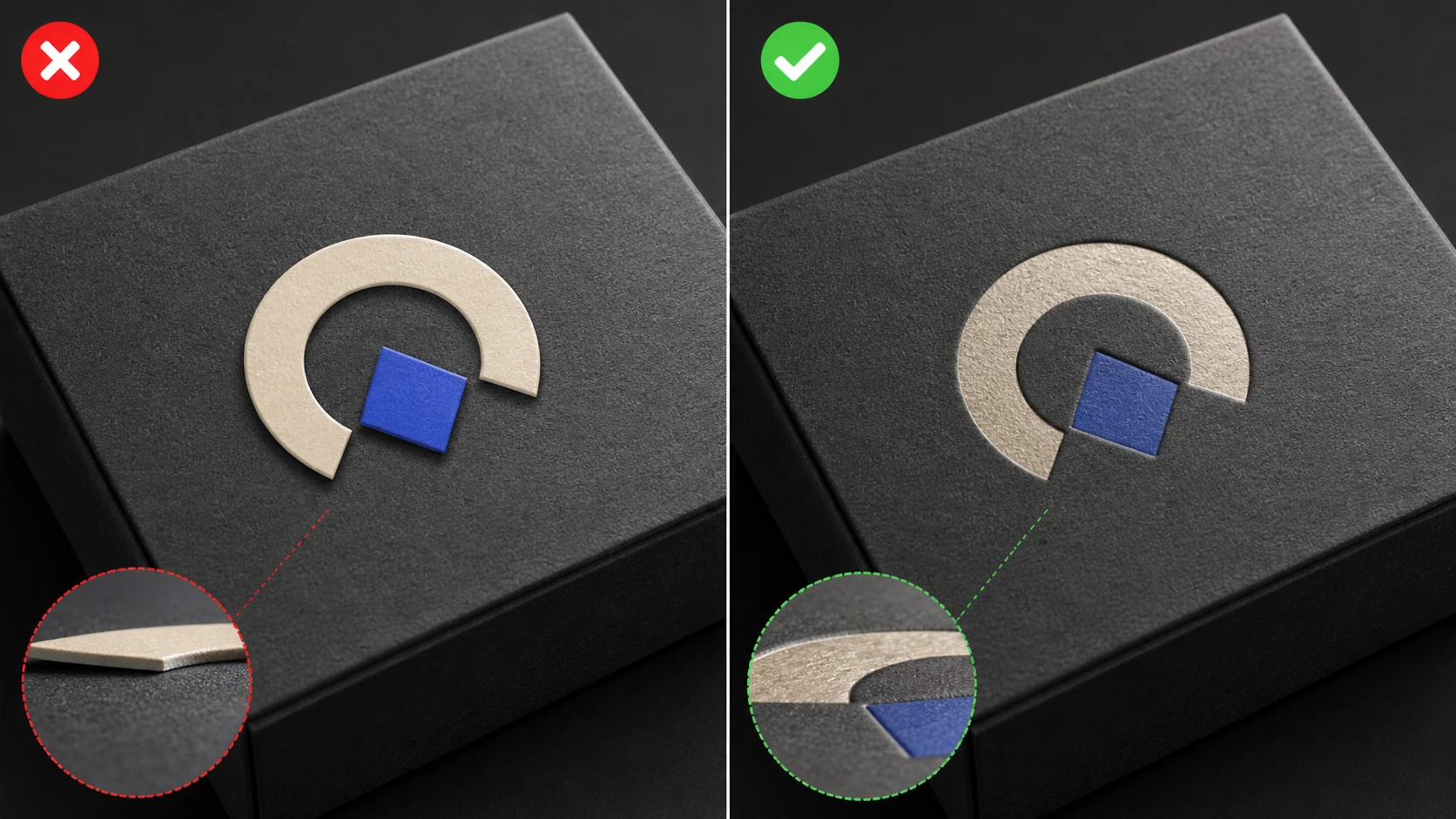
- Natural placement: The mark follows the surface perspective and does not float above, sink into, or bend against the material.
- Realistic interaction: Texture, highlights, shadows, reflections, folds, and occlusion support the intended application.
- Useful scale: The logo is prominent enough to identify without overwhelming the product.
- Clear hierarchy: Supporting graphics and environmental details do not compete with the brand.
- Clean output: The image contains no added text, duplicate symbols, unrelated marks, or distracting artifacts.
- Presentation relevance: The logo mockup answers a real stakeholder question rather than serving as decoration.
- Production boundary: The image is labeled as a concept when dimensions, materials, or manufacturing have not been confirmed.
- Consistent set: Multiple logo mockups share a coherent mood and do not make the identity appear inconsistent.
Zoom in to inspect the mark, then zoom out to judge the whole scene. A convincing logo mockup must work at both levels. If the image looks polished but the brand is inaccurate, revise it before presenting.
Turn Your Logo Into a Brand-Ready Mockup
A strong logo mockup does more than decorate a proposal. It tests whether an identity can hold its shape, contrast, scale, and personality when it meets an actual product or environment. Choose a relevant scene, provide clear visual direction, and review the brand details instead of accepting the first polished image.
Start with one decision you need to make, such as packaging material, storefront placement, or apparel scale. Then turn your logo into a realistic mockup using the online mockup generator with a template, custom reference, or prompt. Compare the result with the source logo, refine what feels wrong, and download the logo mockup that communicates your direction most clearly.