
How to Animate a Logo: 5 Steps, Motion Styles & Prompts
If you want to know how to animate a logo — without After Effects or a motion designer — the whole workflow comes down to five steps: prepare a clean logo file, pick one motion style that fits your brand from the Motion Library's seven presets, describe the movement in a single motion prompt, generate a preview, and test the MP4 in the place where it will actually run. A restrained, clean logo animation builds far more brand recall than a stack of flashy effects.
This guide covers how to choose a motion style, how to write a motion prompt, what the most common failures look like, and what to check before you publish.
The examples in this guide use fictional brands for demonstration. LogoCreator is not affiliated with, endorsed by, or partnered with any third-party brand mentioned.
Table of Contents
- Choose One Motion Direction That Fits Your Logo
- 7 Logo Animation Styles (+ Custom Motion): How to Choose
- How to Animate a Logo with AI: 5 Steps
- Motion Prompt Examples You Can Copy
- Common Logo Animation Mistakes to Avoid
- Logo Animation Publish Checklist
- FAQ
Choose One Motion Direction That Fits Your Logo
The first principle of how to animate a logo: motion should feel like an extension of the static design, not an effect layered on top of it.
A circular badge can rotate into place. A mark built from separate modules can assemble. A wordmark suits a light sweep, not a tumble. Before choosing a direction, answer three questions:
- What is the structure of your logo? (geometric icon / wordmark / badge / mascot)
- What is the brand personality? (serious / friendly / energetic / premium)
- Where will the animation run? (social intros / presentations / channel intros)
When all three answers point to the same motion language, that is your direction. The next section breaks down all seven styles by logo structure and brand personality — choosing correctly here saves three rounds of rework later.
7 Logo Animation Styles (+ Custom Motion): How to Choose
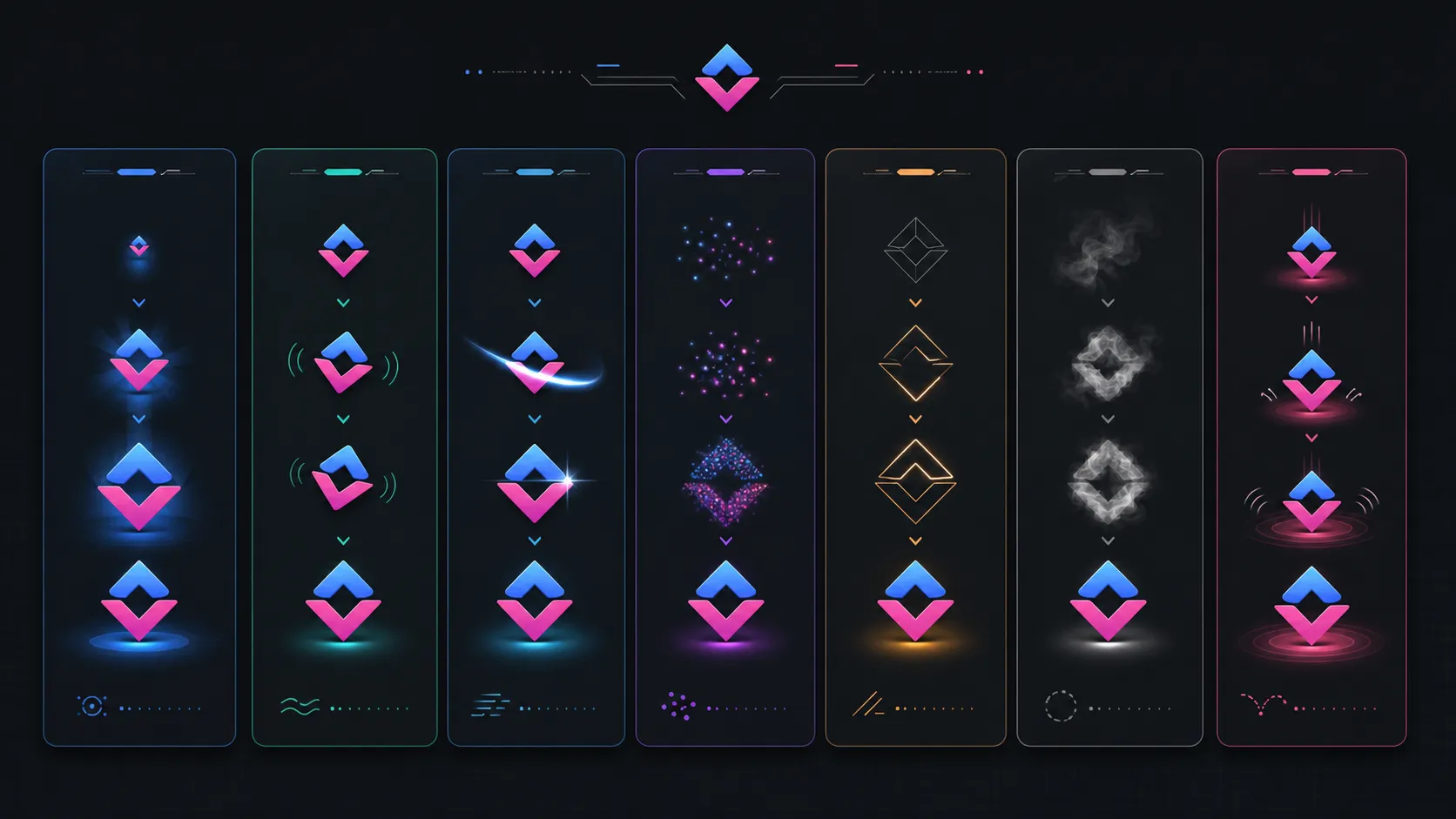
The Motion Library ships with seven motion styles plus a custom entry (Custom Motion). Most first attempts to animate a logo fail at style selection, not execution — the table below is the core decision tool of this guide:
| Style | How it moves | Best for | Use with caution |
|---|---|---|---|
| Soft-Scale-Pop | Scales up from slightly smaller, with one restrained overshoot, then settles smoothly | Every logo type — the safest default | Almost none. Start here if unsure |
| Gentle-Wobble | A small side-to-side wobble with a soft elastic settle | Mascots, creator channels, friendly brands | Serious contexts such as finance or legal |
| Light Sweep | A narrow band of light glides left to right, briefly illuminating detail | Wordmarks, metallic finishes, premium brands | Colorful, complex logos — sweeps can look muddy |
| Particle Assemble | Particles drift inward and assemble the mark | Tech, gaming, energetic brands | Logos with fine details or small text |
| Line Draw Reveal | Traces the original contours, then transitions into the fully filled logo | Monograms, line-based marks, badges | Solid, filled marks with little outline to trace |
| Smoke Formation | Thin smoke drifts in and condenses into the mark, then dissipates | Entertainment, atmospheric, narrative brands | Bright, playful brand tones |
| Bouncing Logo | Drops as one rigid object, bounces twice with decreasing height, then settles | Sports, casual, youth-oriented brands | Formal business content |
| Custom Motion | Describe the motion in your own words; AI Enhance can refine the description | Anything the presets don't cover — orbits, typewriter reveals, frame-by-frame entrances | Vague descriptions produce unpredictable output |
Three selection judgments:
- If unsure, start with Soft-Scale-Pop. It is the only style that is almost impossible to get wrong — use it to see your logo in motion, then decide whether to switch to something with more personality.
- The smaller the text in your logo, the more you should avoid "covering" styles like Particle Assemble and Smoke Formation. Generative motion tends to distort fine lettering edges.
- Light Sweep is practically made for wordmarks: a single band of light creates motion without altering a single letterform.
Further reading: if your logo leans anime or manga, the motion section of our Anime Logo Design guide covers style selection for that genre. This article covers all seven product presets; that one focuses on the anime niche.
How to Animate a Logo with AI: 5 Steps
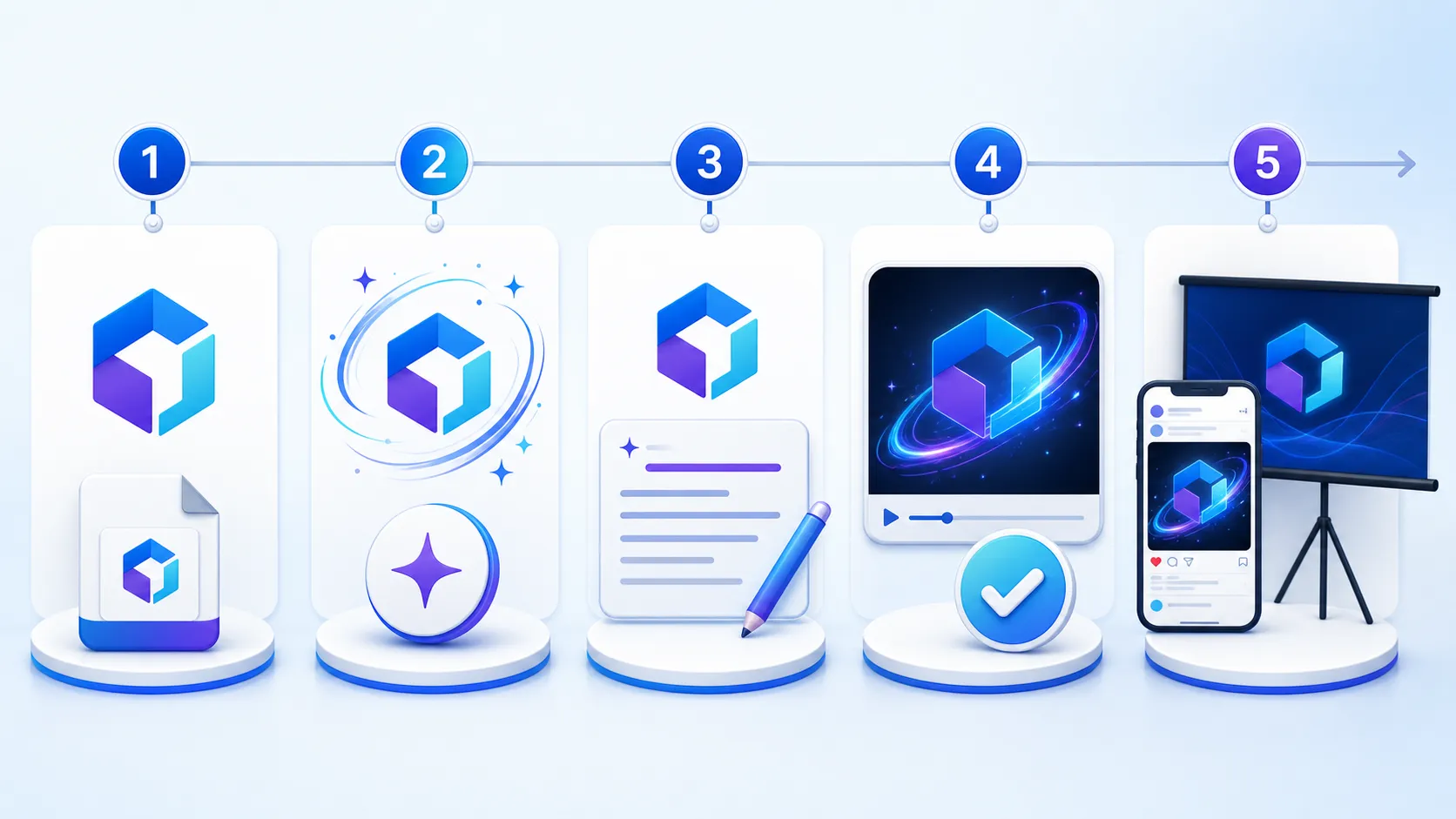
This section is the complete workflow, focused on the decision logic behind each step — the tool itself takes three clicks, the real difference hides in the judgment.
Step 1 — Start from a clean source logo
The ceiling of your animation quality is set before you press generate. The source file is the raw material: blurry in, blurrier out.
What works well:
- A single subject — a symbol, a wordmark, or an icon-plus-text lockup taking up most of the frame
- Accurate lettering and clean edges — the animation faithfully magnifies every strength and every flaw of the source
- Breathing room around the logo so motion elements have space to enter
- Common image formats all work (PNG, JPG, JPEG, WebP)
What to avoid:
- Screenshots carrying menus, clutter, or unrelated text
- Old files with low resolution or soft edges
- Logos packed with too much detail — at small sizes, detail disappears first
No static logo yet? Create one with the AI Logo Creator from a brand name and description, or use Image to Logo to turn a sketch or product photo into a mark — then come back to the animation workflow.
Step 2 — Pick one motion style that fits your logo
Work through the style table above, starting from your logo's structure and brand personality. The three questions in the first section are your selection checklist. The rule: one motion concept per animation — one entrance plus one settle is enough. Stack a light sweep, particles, a bounce, and a rotation into a three-second clip, and the usual result is that nothing sticks.
Step 3 — Write a motion prompt AI can follow
The motion prompt is where how to animate a logo becomes instructions the AI can follow. After choosing a preset style, add an optional Motion Prompt to describe the movement more precisely. Three principles:
- Describe the motion, not the logo. The AI can already see your logo — what it needs is how it should move.
- Describe visible actions, not adjective piles. "A band of light enters from the left, sweeps across the wordmark, and settles" beats "make it premium."
- Say how it ends. The final frame must return to the complete, centered, still logo.
If your description is too rough, the AI logo animation generator's AI Enhance can expand one sentence into structured motion direction.
Step 4 — Generate, then review the full clip
Watch the entire animation from the first frame to the final hold and check four things: is the lettering intact, have the colors drifted, does the last frame land clean, and does the movement fit the brand personality. Generative motion can introduce variation, especially around small text and complex edges. If any check fails, adjust the prompt or switch styles and generate again.
Step 5 — Test the MP4 where it will actually run
Download the MP4 and place it into the real context: is the lettering readable at publishing size? Does the motion carry the brand in muted autoplay feeds? Does the pacing fit the surrounding content? If anything falls short, simplify the motion and generate another version.
Motion Prompt Examples You Can Copy
Three ready-to-adapt prompt templates (fictional brands for demonstration):
Template 1 · Monogram + Line Draw Reveal (design studio "Harbor & Lane"):
Trace the letterform contours of the monogram at an even pace. Once the outline is complete, transition smoothly from the lines into the fully filled logo. End on the complete logo, centered and still.
Template 2 · Geometric icon + Particle Assemble (tool product "Gridpilot"):
Small glowing particles drift in from the edges of the frame and assemble the geometric mark piece by piece. Keep the particle count restrained and the paths purposeful. Once the logo is formed, all particles disappear, and the final frame holds the complete logo, centered.
Template 3 · Mascot + Soft-Scale-Pop (coffee brand "Mug & Bean"):
Scale the logo up gently from slightly smaller, with one restrained overshoot before it settles. Preserve the original proportions and colors — no stretching, no warping — and hold still on the final frame.
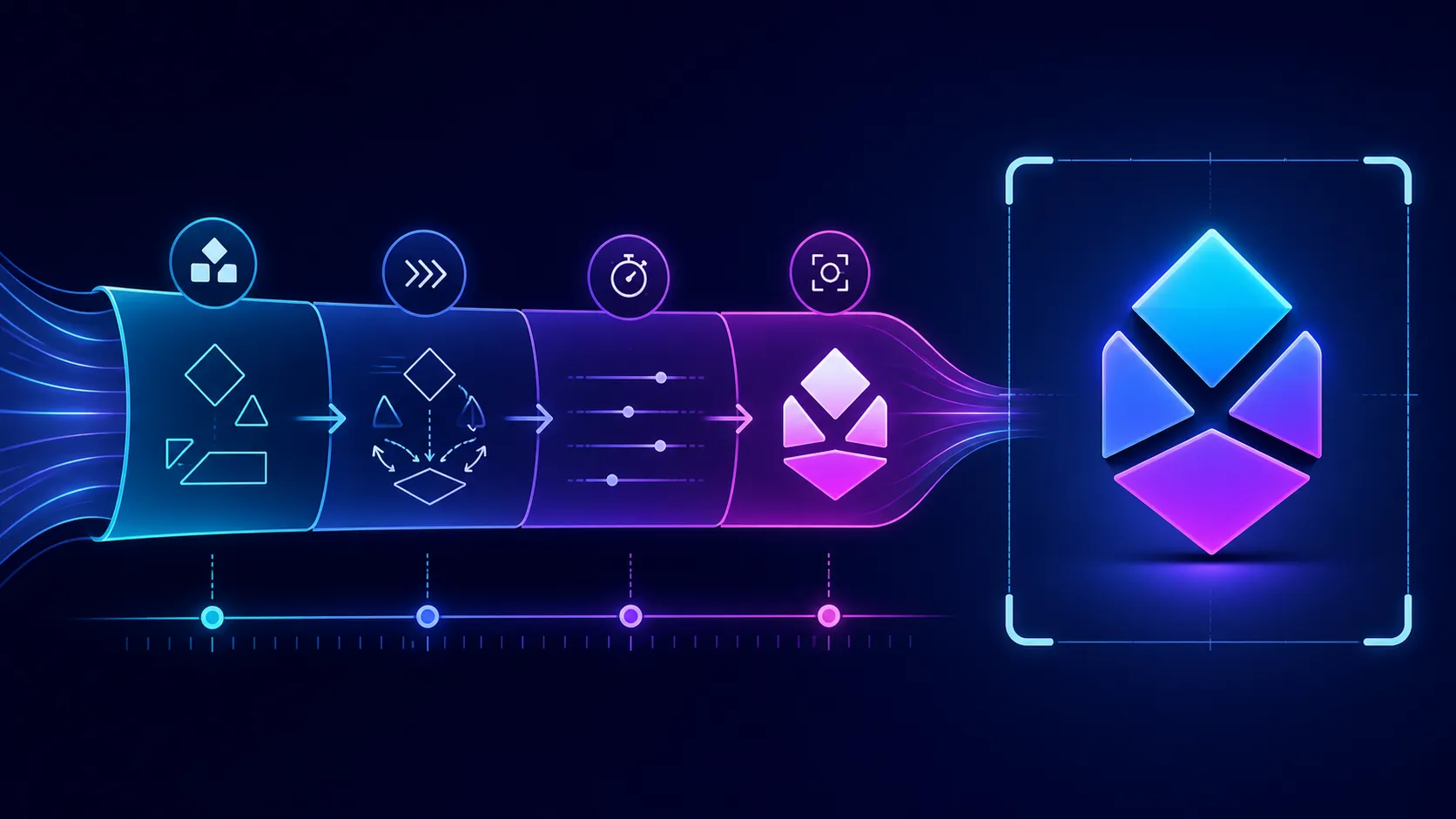
The rewrite formula: [subject] + [visible action] + [pacing] + [end state]. Fill in all four elements and output stability jumps a level.
Common Logo Animation Mistakes to Avoid
- Stacking effects. A light sweep, particles, a bounce, and a rotation performing together reset brand recall to zero. One animation, one motion concept.
- Distorted lettering. Generative motion tends to "redraw" small text and complex edges. For text-heavy logos, choose whole-logo styles (Soft-Scale-Pop / Light Sweep) and skip particles and smoke.
- A dirty final frame. Ending on a blurry, tilted, or particle-covered image erases the memory you just built. The final frame must be the complete logo, held long enough to read.
- Failing silent autoplay. Most social feeds play muted by default. The animation must work with the sound off.
- Skipping the real placement test. Looking good in the generator is not the same as looking good as a 128px avatar or inside a slide deck. Check at publishing size, every time.
Logo Animation Publish Checklist
The creative principles above (one motion concept, clean final frame, correct spelling) already live in earlier sections. Your logo animation is generated — this list covers only the acceptance actions before publishing:
- The final frame is complete, centered, still, and held long enough
- The motion works in muted autoplay feeds (social feeds, Stories)
- Tested on the target platform at publishing size — both avatar-small and presentation-large
- The MP4 is compatible with the target platform or editing tool (output is MP4 only — no GIF, Lottie, or transparent video)
- The result is downloaded within the 7-day history window (older records are cleared automatically)
- The pacing connects naturally with the surrounding content — checked once as an opener, once as an outro, once as a transition
FAQ
How do I choose a motion style for my logo?
Start with structure, then personality: wordmarks suit Light Sweep, monograms and line-based marks suit Line Draw Reveal, and when in doubt begin with Soft-Scale-Pop. For effects beyond the presets — orbits, typewriter reveals — use Custom Motion; you can open the Motion Library and try it directly. The full comparison is in the style table above.
What motion styles does the Motion Library include?
Seven presets — Soft-Scale-Pop, Gentle-Wobble, Light Sweep, Particle Assemble, Line Draw Reveal, Smoke Formation, and Bouncing Logo — plus a Custom Motion entry where you describe the motion in natural language.
Is it free to animate a logo?
You can start exploring for free: uploading a logo, choosing a style, and generating previews require no upfront payment. Download once you are happy with the result.
What files can I upload?
PNG, JPG, JPEG, and WebP all work. Files can be up to 10MB, with a minimum size of 300 × 300 pixels. One note: a transparent PNG does not guarantee a transparent MP4 background in the output.
What format is the result?
MP4 — the format social platforms, presentation tools, and video editors all accept. GIF, WebM, Lottie, transparent video, and editable project files are not currently provided, so plan accordingly if those are essential to your workflow.
How long are my results saved?
Seven days. During that window you can re-watch results, download the MP4, or reuse previous motion settings. Records are cleared automatically afterward, so download anything important promptly.
Can I use the AI-generated animation commercially?
Yes. Downloaded animations can be used commercially. If trademark registration is involved, run a standard availability check in your jurisdiction — that applies regardless of whether the animation was made with AI.
What if I don't have a logo yet?
Create a static logo first with the AI Logo Creator or Image to Logo, pick the result you like, then continue into the animation workflow.
Now you know how to animate a logo: source file ready, style picked, prompt written — the tool handles the rest.