
How to Turn Picture into Logo Without Photoshop (Free AI Way)
In the world of digital branding, the barrier to entry has traditionally been high. For decades, business owners believed that the only way to get a professional brand mark was to hire an expensive agency or spend months mastering complex software. If you have ever searched for how toturn a picture into a logo, you have likely been met with tutorials for Adobe Photoshop or Illustrator that require mastery of the Pen Tool, vector tracing, and layer management.
But the landscape of design has changed. You no longer need to be a graphic designer to digitize your ideas. Whether you have a sketch on a napkin, a photo of your pet, or a snapshot of a building, you can now transform that raster image into a clean, scalable brand identity instantly.
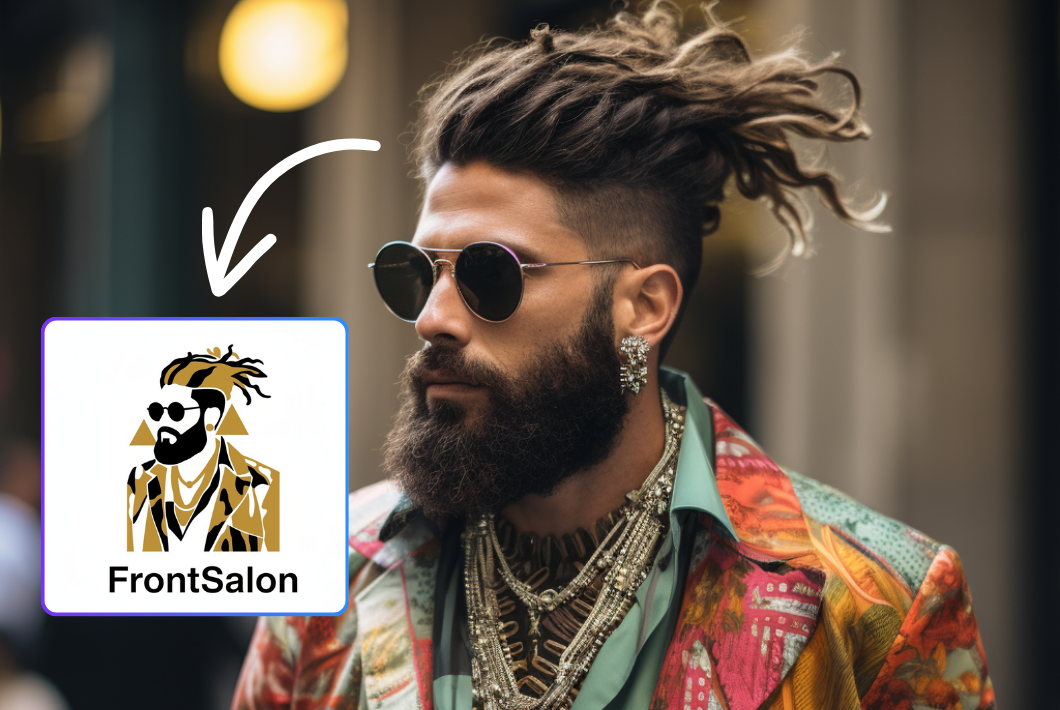
In this ultimate guide, we will teach you how to turn a picture into a logo without touching Photoshop. We will explore the design principles behind abstraction, introduce you to the cutting-edge Nano Banana Pro AI model , and show you how The Logo Creator is revolutionizing the way entrepreneurs approach branding.
Contents
- The Challenge: Why "Tracing" is So Hard
- The Solution: AI-Powered Image to Logo Conversion
- Step-by-Step: How to Turn a Picture into a Logo
- Design Principles: How AI Mimics a Human Designer
- Who Needs to Turn Picture into Logo? (Use Cases)
- Tips for Better Results When You Turn Picture into Logo
- Frequently Asked Questions: How to Turn Picture into Logo
- Conclusion: The Future of Logo Design is Here
The Challenge: Why "Tracing" is So Hard
Before we dive into the solution, it is important to understand why people struggle when they try to turn picture into logo manually.
A photograph (or a sketch) is made of pixels. It is a "raster" image, full of noise, lighting variations, and unnecessary details. A logo, however, is a symbol. It requires abstraction. To successfully turn picture into logo, you cannot just remove the background; you have to extract the essence of the shape.
In Photoshop, this process involves:
- Importing the image.
- Adjusting contrast and levels to isolate lines.
- Using the "Pen Tool" to manually trace over every curve.
- Simplifying the geometry to make it readable at small sizes.
For a non-designer, learning how to turn a picture into a logo this way is frustrating and time-consuming. This is where Artificial Intelligence steps in.
The Solution: AI-Powered Image to Logo Conversion
The modern way to turn picture into logo utilizes generative AI. Unlike old-school "auto-tracers" that simply looked at contrast, modern AI understands semantics. It knows what a "cat" looks like, and it knows what a "minimalist logo" looks like.
When you use our tool to turn picture into logo, you are leveraging a sophisticated process called Feature Extraction and Stylization.
The Engine: Nano Banana Pro
At the heart of The Logo Creator is a state-of-the-art image generation model known as Nano Banana Pro.
Why does the model matter when you learn how to turn a picture into a logo? Because standard AI models often hallucinate. They might take your picture of a coffee cup and turn it into a spaceship because they don't respect the source geometry.
Nano Banana Pro is specifically fine-tuned for:
- Structural Adherence: It keeps the main shape of your uploaded image.
- Style Consistency: It understands the difference between "Line Art" and "Rubber Stamp."
- Simplification: It automatically removes visual noise, which is the most critical step when you turn picture into logo.
Step-by-Step: How to Turn a Picture into a Logo
Ready to design? Here is your exact workflow. You don't need to download software; you just need your browser and your source image.
Step 1: Upload Your Reference Image
The first step in learning how to turn a picture into a logo is selecting the right source material. This could be:
- A hand-drawn sketch of your idea.
- A photo of a product you sell.
- A picture of yourself (for a personal brand avatar).
- An image of an animal or mascot.
Upload this image to the Image to Logo Converter. The AI will use this as the "ControlNet" or structural guide. It tells the AI, "Make a logo, but make it look like this shape."

Step 2: Select Your Aspect Ratio
In the settings, you will see an option for Aspect Ratio. By default, this is set to "Match Input Image ".
If your sketch is square, keep it square.
If you are uploading a wide landscape photo, you might want to crop it first, or let the AI generate a wider logo lockup.

Pro Tip: For most logos, a 1:1 (Square) ratio is ideal for social media profiles and favicons.
Step 3: Choose Your Design Style (The Magic Step)
This is the most critical part of learning how to turn a picture into a logo. The style determines how the AI interprets your photo. The Logo Creator offers 10 distinct modes powered by Nano Banana Pro.
Let’s break down which style you should choose to successfully turn picture into logo for your specific industry:

1. Minimalist
Best for: Tech startups, SaaS, Modern Apps. When you turn picture into logo using the Minimalist style, the AI strips away 90% of the detail. It focuses on the silhouette. If you upload a complex flower, it will return a clean, Apple-style icon of a flower. This is the "less is more" principle in action.
2. Abstract
Best for: Creative agencies, Consulting firms. This mode takes your image and breaks it down into geometric concepts. It doesn't just copy the image; it interprets it. If you want to know how to turn a picture into a logo that looks artistic and fluid, choose Abstract.
3. Line Art
Best for: Beauty brands, Florists, Architects. Line Art converts the edges of your photo into elegant, consistent strokes. This creates a sophisticated, high-end look. It is excellent for turning architectural photos into logos.

4. Negative Space
Best for: Clever, intellectual brands. This is a favorite among designers. Negative space uses the background color to define the shape (like the hidden arrow in the FedEx logo). Learning how to turn a picture into a logo with negative space usually takes years of practice, but Nano Banana Pro can simulate this effect instantly.
5. Monochrome Line & Plate
Best for: Badges, Crests, Legal firms. This adds a container or a "plate" behind your line art, giving it weight and authority.
6. Geometric
Best for: Blockchain, Security, Construction. This style forces your organic photo into strict mathematical shapes—triangles, circles, and squares. It projects stability. When you turn picture into logo geometrically, you tell your customers that you are reliable and structured.
7. Cartoon
Best for: Gaming, Children's Products, Mascots. Do you have a picture of your dog? The Cartoon mode will turn picture into logo by adding bold outlines, flat colors, and an expressive character style, perfect for Twitch streamers or pet brands.
8. Vintage
Best for: Coffee shops, Barber shops, Breweries. This applies a retro filter, often adding texture or woodcut effects. It makes a new logo feel established and heritage-focused.
9. Adorable
Best for: Baby products, Bakeries, Gift shops. This style softens all the edges. It rounds out corners and uses a "kawaii" aesthetic. It is the quickest way to turn picture into logo if your brand voice is friendly and approachable.
10. Rubber Stamp
Best for: Handmade goods, Organic food, Etsy sellers. This creates a textured, imperfect look that mimics ink on paper. It adds a human touch to digital brands.
Step 4: Refine with Text Prompts
Even though you are using an image as a base, you can guide the AI with text. In the "Prompts" box, you can add context.
Example: You uploaded a sketch of a burger.
Prompt: "A delicious burger, fast food style, red and yellow colors, vector style."
This combination of Image Input + Text Prompt is the secret weapon for those learning how to turn a picture into a logo professionally. It gives you dual control over the outcome.

Design Principles: How AI Mimics a Human Designer
To truly master how to turn a picture into a logo, it helps to understand what the AI is actually doing in the background. It is applying three core design principles:
1. Simplification and Reduction
A photo has millions of colors. A logo should have 1-3 colors. When you request to turn picture into logo, Nano Banana Pro analyzes the color histogram and reduces it. It merges similar shades into flat blocks of color, imitating the "Vectorization" process used in Adobe Illustrator.
2. Feature Exaggeration
In a photo of a lion, the whiskers are thin and invisible from a distance. In a logo, the whiskers must be thick and bold. The AI understands that to turn picture into logo effectively, it must exaggerate key features (ears, eyes, distinct shapes) so they remain visible when the logo is the size of a mobile app icon.
3. Symbolism over Realism
Realism is the enemy of logo design. A photo of a hammer looks like a tool; a logo of a hammer represents "construction" or "justice." The AI shifts the rendering from photorealistic to symbolic. This is the hardest part of learning how to turn a picture into a logo manually, but the AI handles the cognitive load for you.
Who Needs to Turn Picture into Logo? (Use Cases)
We see thousands of users utilizing The Logo Creator every day. Here are the most common scenarios where the turn picture into logo function saves the day:
The "Napkin Sketch" Entrepreneur
You are at a cafe, and you have a brilliant idea. You sketch it on a napkin. It looks messy, but the core idea is there.
Old Way: Scan it, send it to a designer on Fiverr, wait 3 days, ask for revisions.
New Way: Snap a photo, upload it to our tool, select "Line Art" or "Minimalist," and turn picture into logo in 30 seconds.
The Personal Brand
You are a consultant or an influencer. You want a logo that represents you.
Strategy: Upload a headshot. Use the "Minimalist" or "Cartoon" style.
Result: You successfully turn picture into logo to create a recognizable avatar that looks professional, not just like a selfie.
The Re-brander
You have an old logo from 1990. It is a low-resolution JPEG pixelated file. You lost the vector file years ago.
Strategy: Upload the old blurry logo. Use the "Geometric" or "Minimalist" style to modernize it.
Result: You turn picture into logo to refresh your brand identity without losing the heritage of your original mark.

Tips for Better Results When You Turn Picture into Logo
While The Logo Creator is powerful, the quality of your output can be improved with these prompt engineering tips.
1. High Contrast Inputs work Best When you want to turn picture into logo, try to use input images with clear lighting. If your photo is dark or blurry, the Nano Banana Pro model might struggle to find the edges. High contrast (black on white) sketches yield the best results.
2. Use the "Prompts" Box Wisely Don't just leave the prompt box blank. Describe the vibe you want.
Bad Prompt: "Logo."
Good Prompt: "Minimalist logo of a mountain, blue gradient, tech startup vibe, clean lines, vector style." By being descriptive, you help the AI turn picture into logo with higher accuracy.
3. Experiment with Styles Don't stop at one generation. The same image will look drastically different in "Vintage" mode versus "Abstract" mode. The best way to learn how to turn a picture into a logo that fits your brand is to try at least 3 different styles.
4. Keep it Simple If your input image is very cluttered (e.g., a photo of a busy street), the logo will be messy. Crop the image to focus on the single subject you want to symbolize before you try to turn picture into logo.
Frequently Asked Questions: How to Turn Picture into Logo
Q: Can I turn a photo of a real person into a logo? A: Yes! This is a very popular feature. Upload a portrait and select "Cartoon" or "Line Art." This is the fastest way to turn picture into logo for gaming avatars or social media profiles.
Q: Is it really free to generate? A: Yes, The Logo Creator allows you to generate and experiment with different styles for free. We believe everyone should have access to tools that teach them how to turn a picture into a logo.
Q: Do I need to know drawing? A: Absolutely not. That is the beauty of AI. You can upload a stick figure drawing, and the AI will interpret it and polish it. You do not need drawing skills to turn picture into logo anymore.
Q: What is the best style for a business logo? A: Generally, "Minimalist" and "Geometric" are the safest bets for corporate business. If you are in a creative field, "Abstract" or "Vintage" might work better. The tool lets you test them all when you turn picture into logo.
Q: How does Nano Banana Pro differ from Midjourney or DALL-E? A: While general image generators create art, Nano Banana Pro is fine-tuned specifically for logos. It understands vector aesthetics, clear backgrounds, and strong silhouettes, making it the superior choice when you need to turn picture into logo.
Conclusion: The Future of Logo Design is Here
The days of struggling with the Pen Tool or paying hundreds of dollars for a simple vector trace are over. Technology has democratized design. By using the specialized Nano Banana Pro model , you can achieve professional results in seconds.
Whether you are a startup founder, a creative hobbyist, or just someone looking to update their social media presence, learning how to turn a picture into a logo with AI is a superpower. It gives you the freedom to iterate, experiment, and finalize your brand identity on your own terms.
Stop letting technical barriers hold back your brand. Take your sketch, your photo, or your idea, and bring it to life today.
Ready to start? Click here to use our tool and turn picture into logo right now. It’s fast, free, and incredibly powerful.